You Should Read This if iOS 26.2 Is Draining Your iPhone’s Battery: If You Feel Like Your iPhone’s Battery Is Draining Quickly After Downloading the Latest Update, Don’t Panic

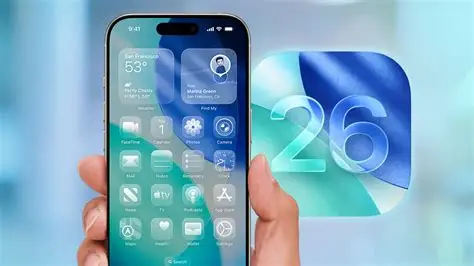
In the ever-evolving world of iOS, point updates like iOS 26.2—released on December 12, 2025—often bring a mix of excitement and unexpected challenges. While this update introduced polished refinements to the groundbreaking Liquid Glass design, enhanced accessibility options, and critical security patches, a notable number of users have reported accelerated battery drain shortly after installation. If you’ve noticed your iPhone’s percentage dropping faster than usual, reaching for the charger more often, or even experiencing slight warmth during idle periods, you’re not alone—and there’s no need to panic.
Battery concerns following major or point releases are commonplace in the Apple ecosystem, often stemming from temporary background processes rather than permanent flaws. iOS 26.2, building on the bold redesign of iOS 26, demands initial resources for re-indexing photos, optimizing apps, and integrating new features like expanded alert flashing and Reminders alarms. These tasks can temporarily elevate power consumption, mimicking a persistent drain. However, for some users—particularly those experimenting with new tools or on older compatible models—the impact feels more pronounced.
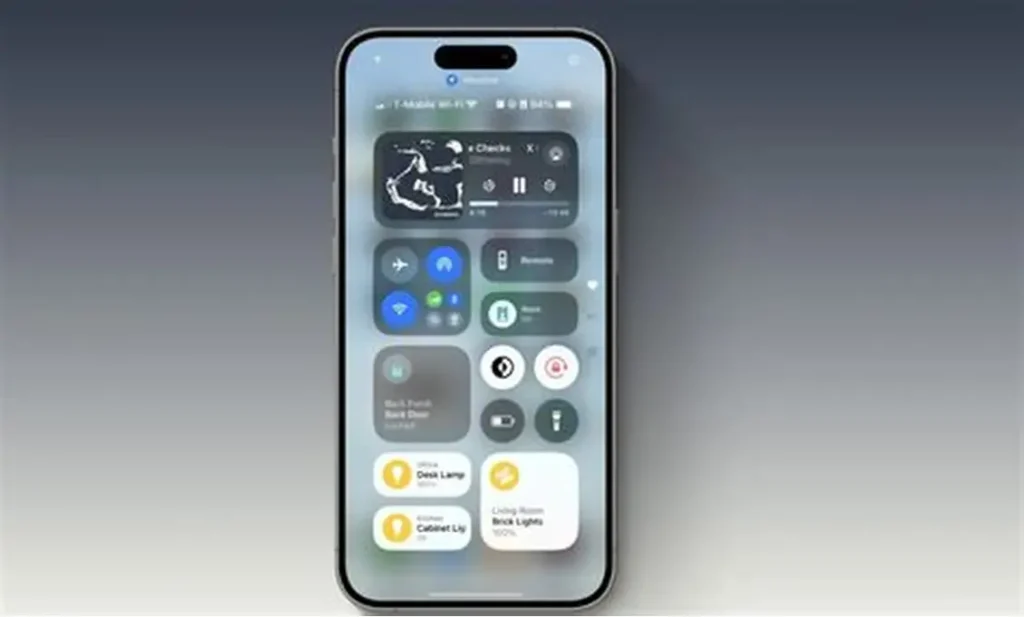
This in-depth exploration delves into the realities of iOS 26.2 battery performance, drawing from user reports, expert analyses, and Apple’s own guidance. We’ll examine common causes, provide practical troubleshooting steps, and offer recommendations to restore optimal endurance without sacrificing the update’s benefits.
Why Battery Drain Often Follows iOS Updates Like 26.2
Every iOS update triggers a series of behind-the-scenes activities that prioritize system health and performance. After installing iOS 26.2, your iPhone engages in:
- Spotlight Re-Indexing: Searching and cataloging content across apps, photos, and files for faster results.
- Photo Analysis: Machine learning processes to enhance Memories, Search, and object recognition in the Photos app.
- App Optimization: Updating third-party apps to align with new APIs and security protocols.
- iCloud Syncing: Ensuring seamless data alignment across devices.
These processes, while essential, are CPU-intensive and can cause noticeable battery depletion in the first 24-72 hours—or up to a week for devices with large libraries. Apple’s support documentation explicitly notes that “ongoing iOS update” insights may appear in Settings > Battery, signaling elevated usage during this period.
In iOS 26.2 specifically, refinements to Liquid Glass (including customizable clock tinting and opacity sliders) and new accessibility features like screen-based alert flashing require initial calibration. Additionally, security fixes addressing over 20 vulnerabilities demand verification scans, adding to the temporary load.
User experiences vary by model: iPhone 17 series devices, with advanced efficiency cores, often stabilize quickly, while iPhone 11 or 12 users report longer adjustment periods due to older hardware managing the translucent effects and enhanced animations.
Real-User Reports: The Scope of iOS 26.2 Battery Concerns
Community forums, social media, and tech sites have seen a surge in discussions post-release. Many describe idle drain of 10-20% overnight—higher than pre-update norms—or reduced screen-on time. Heating during light tasks, such as browsing or streaming, accompanies some complaints, linked to background indexing.
Not all feedback is negative; numerous users praise stable or improved longevity after the initial phase, attributing enhancements to optimized power management in Liquid Glass. Factors like screen brightness, Always-On Display (on supported models), and background app refresh amplify perceived issues.
Third-party apps, especially those not yet fully optimized for iOS 26.2, contribute significantly. Social media platforms and navigation tools often top battery usage charts post-update.
Step-by-Step Guide: Diagnosing Your iPhone’s Battery After iOS 26.2
Begin by assessing the situation objectively:
- Check Battery Usage Stats: Go to Settings > Battery. Review the last 24 hours and 10 days. Look for “Ongoing iOS Update” or high usage from Home & Lock Screen, Photos, or specific apps.
- Monitor Battery Health: Settings > Battery > Battery Health & Charging. Note maximum capacity and optimized charging status.
- Observe Patterns: Track drain during idle (airplane mode test) versus active use.
If stats reveal anomalies beyond the first few days, proceed to fixes.
Proven Fixes to Mitigate Battery Drain on iOS 26.2
Most issues resolve naturally, but these steps accelerate recovery and prevent recurrence:
1. Allow Time for Indexing: Patience is key. Avoid heavy usage initially; charge overnight to let processes complete.
2. Restart and Update Apps: Force restart (volume up, volume down, hold side button). Update all apps via App Store—developers release iOS 26.2-compatible versions quickly.
3. Optimize Display Settings:
- Reduce brightness or enable Auto-Brightness.
- Disable Always-On Display if enabled.
- Experiment with Liquid Glass opacity: Higher frosted effects may consume more power on OLED screens.
4. Manage Background Activity:
- Settings > General > Background App Refresh: Set to Wi-Fi or Off for non-essential apps.
- Limit Location Services: Settings > Privacy & Security > Location Services—set to While Using for most.
5. Tame Notifications and Accessibility:
- Curate notifications to reduce wake-ups.
- If using new Flash for Alerts (screen flash), test toggling off temporarily.
6. Reset Network Settings: If cellular/Wi-Fi issues contribute: Settings > General > Transfer or Reset iPhone > Reset > Reset Network Settings.
7. Advanced Options:
- Disable iCloud Photo syncing temporarily if library is large.
- Low Power Mode for testing.
- As last resort: Backup and erase all content (Settings > General > Transfer or Reset iPhone > Erase All Content and Settings), then restore.
Apple typically addresses widespread concerns in follow-ups like iOS 26.2.1—expected early 2026.
When to Seek Further Help
If drain persists beyond a week, exceeds 30-40% idle overnight, or accompanies overheating:
- Run diagnostics via Apple Support app.
- Visit Apple Store for hardware check (rarely, degraded batteries exacerbate software strain).
- Report via Feedback app to influence future patches.
Long-Term Battery Best Practices for iOS 26.2
To maximize endurance:
- Enable Optimized Battery Charging.
- Use dark mode with Liquid Glass for OLED efficiency.
- Avoid extreme temperatures.
- Keep iOS and apps current.
iOS 26.2 also refines sleep tracking and emergency features, rewarding patient users with a more polished experience.
Conclusion: Reclaim Your iPhone’s Battery Confidence
iOS 26.2 battery drain, while frustrating for some, is predominantly transient—rooted in essential post-update housekeeping rather than inherent defects. By understanding the causes, monitoring usage, and applying targeted optimizations, most users restore—or even surpass—pre-update performance within days.
Don’t panic if your iPhone feels thirstier post-install; embrace the update’s elegance, from tinted Liquid Glass clocks to inclusive alert options, while implementing these strategies. Your device will settle, delivering the reliable all-day power Apple is renowned for.
Stay charged, stay informed, and enjoy the refined world of iOS 26.2.