
AI-Powered Tools Reshaping Digital Marketing in the US: A 2026 Strategic Guide for Marketers


Introduction: The AI Marketing Revolution Is Already Here
If you’re a marketer, founder, or business leader in the US, you’re likely asking: “How can AI actually improve my campaigns, save costs, and drive real revenue—not just hype?” The answer is clear: AI-powered tools are no longer optional. They’re the engine behind hyper-personalization, predictive customer journeys, and real-time optimization across search, social, email, and e-commerce.
In 2025, 73% of US marketing teams now use AI in at least one core function—up from 35% in 2021 (McKinsey, 2025). From generative ad copy to dynamic pricing algorithms, AI is reshaping how brands attract, engage, and retain customers. This article delivers a data-driven, actionable roadmap for leveraging AI in US digital marketing—with real-world examples, cost-benefit insights, compliance guidance, and strategic recommendations for 2026 and beyond.
The State of AI in US Digital Marketing: Trends & Adoption
AI adoption in US marketing has shifted from experimentation to execution. According to Salesforce’s 2025 State of Marketing Report, AI is now embedded in:
- Content creation (68% of teams)
- Customer segmentation (62%)
- Ad optimization (57%)
- Predictive analytics (49%)
Drivers include rising customer expectations, declining organic reach, and the explosion of first-party data post-cookie deprecation. The National Science Foundation notes that AI-driven marketing automation could add $270 billion annually to the US digital economy by 2027.
Key trends defining 2025–2026:
- Generative AI for scale: Brands produce 10x more personalized content.
- Predictive personalization: AI anticipates user intent before the click.
- Voice & visual search optimization: AI indexes non-textual queries.
- Real-time campaign adjustment: Algorithms shift budgets mid-campaign based on performance.
- Ethical AI compliance: Transparency and bias mitigation become brand differentiators.
Real-World Case Studies: AI Driving Measurable ROI
Case 1: Sephora – Hyper-Personalization at Scale
Sephora’s AI-powered “Virtual Artist” uses computer vision and AR to let users try on makeup virtually. Integrated with their CRM, it recommends products based on skin tone, past purchases, and trending looks.
Results (2024–2025):
- 11x higher conversion rate for users engaging with Virtual Artist
- Average order value increased by 32%
- Email campaigns using AI-generated product bundles saw 28% higher CTR
“AI turns every interaction into a 1:1 experience,” said Priya Sharma, CMO of Sephora North America.
Case 2: The Home Depot – Predictive Inventory + Marketing Sync
Using Google Cloud AI and first-party purchase data, Home Depot predicts regional demand for products (e.g., snow shovels in Minnesota) and automatically adjusts:
- Local SEO content
- Paid search bids
- Social media ad creatives
Impact:
- Reduced ad waste by 22%
- Local store traffic from digital campaigns rose by 19%
- ROI on Google Performance Max campaigns improved by 3.4x
Case 3: Chubb Insurance – AI in B2B Lead Nurturing
Chubb deployed Drift’s AI chatbot and HubSpot’s predictive lead scoring to engage commercial clients. AI identifies high-intent visitors and routes them to sales with contextual insights.
Outcomes:
- Sales-qualified leads increased by 41%
- Sales cycle shortened by 17 days
- Customer satisfaction (CSAT) rose to 92%
Top AI Marketing Tools in 2025: A Comparison
| Tool | Core Function | Best For | Starting Price | Key AI Feature |
|---|---|---|---|---|
| Jasper | Generative content (ads, emails, blogs) | E-commerce, agencies | $49/month | Brand voice cloning, SEO optimization |
| Adobe Marketo Engage | Multichannel campaign automation | Enterprise B2B | Custom | Predictive content scoring |
| Dynamic Yield (by Netflix) | Personalization engine | Retail, media | Enterprise | Real-time UX customization |
| Surfer SEO | AI-powered SEO content optimization | SMBs, content teams | $89/month | Competitor gap analysis + content briefs |
| Crayon | Competitive intelligence | SaaS, tech | $1,200+/month | AI tracking of competitor messaging shifts |
Sources: G2 Crowd 2025, Gartner Magic Quadrant for Marketing AI

Note: Tools like Google Performance Max and Meta Advantage+ now embed AI natively—no third-party integration needed.
Impact Across Marketing Functions
Paid Media & Advertising
- Meta Advantage+ uses AI to auto-generate ad creatives, audiences, and placements.
- Brands like Gymshark report 20% lower CAC using Advantage+ shopping campaigns.
- Google Performance Max consolidates budgets across YouTube, Search, Gmail, and Display—with AI optimizing in real time.
- Average ROAS: 5.2x (Google, 2025)
Email & CRM
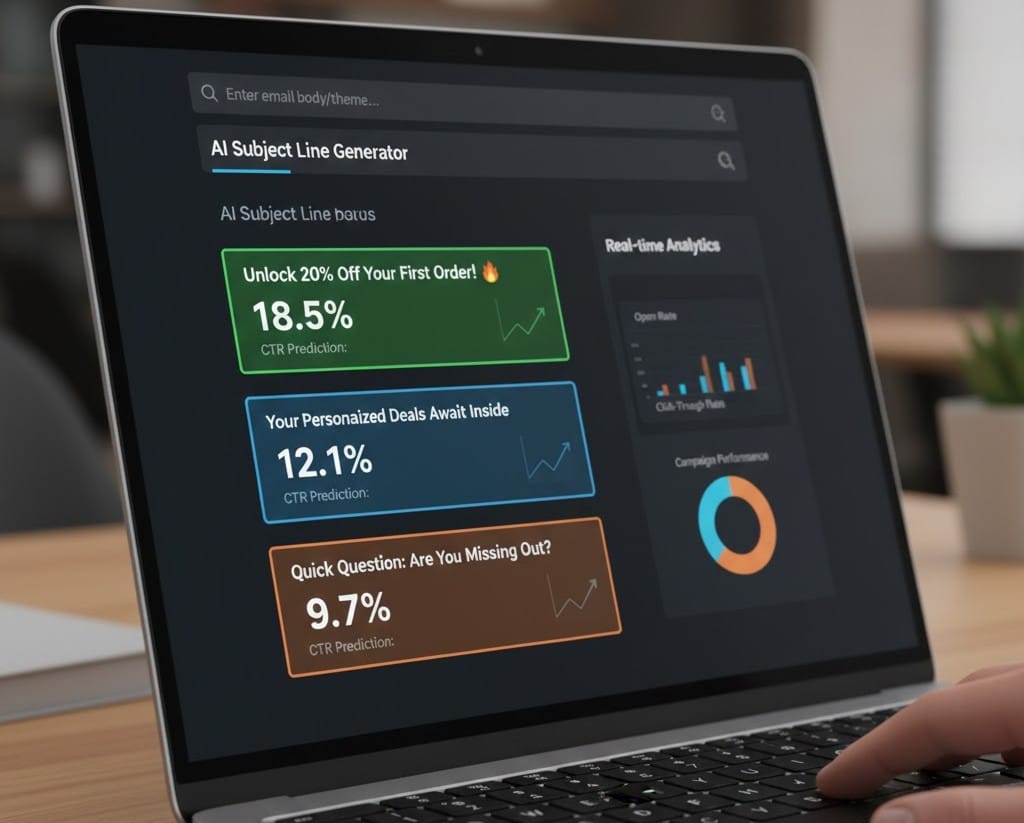
- Klaviyo’s AI Subject Line Optimizer tests thousands of variants.
- Users see 15–30% higher open rates.
- Salesforce Einstein predicts churn risk and recommends next-best actions.
- Reduces attrition by up to 25% in SaaS clients.
Content & SEO
- Clearscope and MarketMuse analyze top-ranking content and generate AI briefs.
- Users achieve top 3 rankings 3x faster.
- Heyday (by Hootsuite) uses AI to draft social posts from brand guidelines.
- Cuts content creation time by 65%.
Analytics & Insights
- Google Analytics 4 + BigQuery ML lets marketers build custom propensity models.
- Tableau + Einstein AI surfaces anomalies (e.g., sudden drop in mobile conversions).
Navigating Risks: Bias, Privacy, and Over-Automation
AI in marketing isn’t without pitfalls:
1. Algorithmic Bias in Targeting
- Risk: AI may exclude demographics based on flawed training data (e.g., showing high-income loans only to white males).
- Solution: Audit audience segments. Use IBM’s AI Fairness 360 toolkit to detect bias.
2. Data Privacy & Compliance
- CCPA (California), VCDPA (Virginia), and state-level laws restrict AI use with personal data.
- FTC Guidance (2024): Requires transparency when AI influences pricing or offers.
- Best Practice:
- Collect explicit consent for AI-driven personalization
- Avoid inferencing sensitive attributes (race, health, etc.)
3. Brand Voice Erosion
- Risk: Over-reliance on AI leads to generic, tone-deaf messaging.
- Mitigation:
- Train AI on your brand’s tone-of-voice documents
- Always human-edit AI output before publishing
4. Cost vs. ROI Uncertainty
- Enterprise AI suites can cost $50K+/year.
- Recommendation: Start with point solutions (e.g., Jasper for content, Surfer for SEO) and scale after proving ROI.
Federal Policy & Industry Standards
While the US lacks a federal AI marketing law, several frameworks apply:
- FTC Enforcement Policy Statement on AI (2024): Holds companies accountable for AI-driven deception or discrimination.
- NIST AI Risk Management Framework (2023): Voluntary standard adopted by 60% of Fortune 500 marketers.
- Digital Advertising Alliance (DAA) Principles: Require transparency in AI-based behavioral advertising.
Key Takeaway: If your AI tool impacts consumer decisions (pricing, credit, insurance), assume regulatory scrutiny is coming.
Actionable Next Steps for US Marketers in 2026
- Audit your stack: Identify 1–2 high-impact areas for AI (e.g., email subject lines, ad creatives).
- Pilot responsibly: Run 60-day tests with clear KPIs (e.g., CTR, conversion lift, time saved).
- Prioritize first-party data: Build zero-party data strategies (quizzes, preference centers) to fuel AI post-cookie.
- Train your team: Certify staff in Google’s AI for Marketers or Meta Blueprint AI courses.
- Document your AI use: Create an internal “AI Transparency Statement” for compliance and brand trust.
Conclusion: AI as Your Co-Pilot, Not Your Captain
AI-powered tools are transforming US digital marketing from a reactive discipline into a predictive, personalized, and profoundly efficient growth engine. But success lies not in full automation—it’s in augmentation. The most effective marketers use AI to handle scale and speed, while humans focus on strategy, creativity, and ethics.
As we move into 2026, the winners will be those who balance innovation with responsibility—using AI not just to sell more, but to serve better.

Frequently Asked Questions (FAQ)
1. What’s the #1 AI marketing tool for small businesses in 2026?
Jasper or Copy.ai for content; Surfer SEO for organic growth; and Meta Advantage+ for paid ads—all offer strong ROI under $100/month.
2. Can AI write better ad copy than humans?
AI excels at volume and A/B testing, but humans win on emotional nuance. Best practice: AI drafts, human refines.
3. Are AI marketing tools compliant with US privacy laws?
Only if configured properly. Avoid tools that scrape public data or infer sensitive attributes without consent.
4. How much can AI reduce marketing costs?
Most brands report 20–40% savings on content creation, media waste, and manual segmentation (McKinsey, 2025).
5. Will AI replace marketing jobs?
It will replace tasks—not roles. Demand for “AI-savvy marketers” is projected to grow 35% by 2027 (BLS).
Real Case Scenario: How an E-commerce Brand Used AI to Double ROI
In 2025, a mid-sized U.S. e-commerce brand implemented a suite of AI tools to transform its marketing funnel:
- Tools Used: ChatGPT for content generation, Perplexity Pro for competitive research, and Zapier AI for workflow automation.
- Strategy: AI generated personalized email sequences, analyzed customer behavior, and automated multi-channel campaigns.
Results After Six Months:
- 2× increase in email conversion rates
- 35% reduction in customer acquisition cost
- 45% higher engagement on social platforms
- Automated tasks saved the team 12 hours per week
Key Takeaways:
- Start with one AI tool and measure impact
- Use AI insights to refine messaging and targeting
- Maintain human review to keep brand voice consistent
✅ 3) جدول AI Tools SEO-Ready
| AI Tool | Best For | Pricing (2026) | Primary Benefit | Best Use Case |
|---|---|---|---|---|
| ChatGPT | Content creation | Free / $20/mo | Fast, contextual writing | Blog posts, copywriting |
| Perplexity Pro | Market research | $20/mo | Annotated, cited answers | Competitive & keyword insights |
| Zapier AI | Automation workflows | $29.99/mo | Saves time | Trigger-based campaign automation |
| GrammarlyGO | Messaging refinement | $12/mo | Tone & grammar | Email & ad copy polish |
| Notion AI | Team productivity | $8–$15/mo | Project summaries & planning | Multi-channel campaign organization |
| HubSpot AI | CRM & personalization | Contact-based | Customer journey AI | Lead scoring & tailored outreach |